
Convert NSF Mailbox to PST: A Complete How-To Guide
Learn how to Convert NSF Mailbox to PST easily with step-by-step manual methods and safe solutions for seamless email migration.
 nyxamir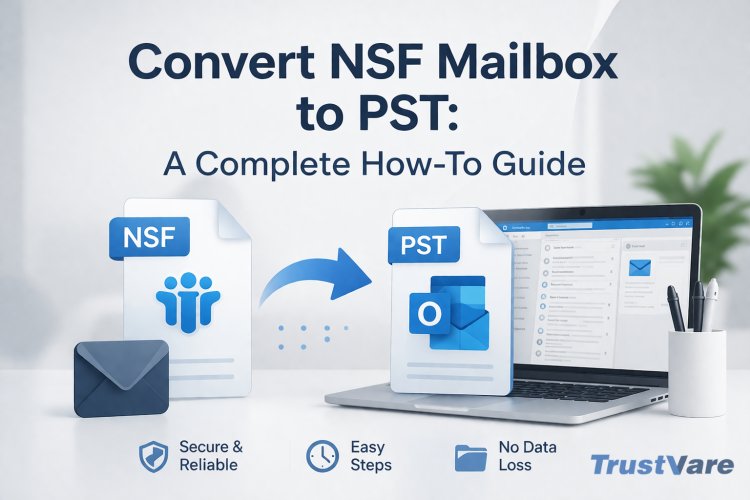
If you use IBM Notes and want to move to Microsoft Outlook, you'll need to convert NSF mailbox to PST format. Lotus Notes uses NSF files, and Outlook supports PST files. You can't view the files directly since the two email programs utilise different file formats.
This article will show you simple and clear ways to convert NSF to PST. It will explain you a full manual method in easy simple steps.
Why Convert NSF Mailbox to PST?
A lot of people switch from IBM Notes to Outlook since Outlook is easier to use and has more support. Some common reasons are:
- Outlook has a straightforward and easy-to-use interface.
- Works well with Microsoft Office tools
- Better ways to handle and search your email
- Affordable for both personal and corporate purposes
- You need to convert NSF file to PST format in order to access your old NSF emails in Outlook.
Manual Method to Convert NSF Mailbox to PST
The manual technique is free, but it takes some technical know-how. It means utilizing Microsoft Outlook and IBM Notes at the same time.
Requirements Before You Start
- Before you start, make sure you have:
- You have IBM Notes setup in your computer.
- Microsoft Outlook has been set up and installed.
- Access to your NSF mailbox file
- A good internet connection (for setting things up if needed)
Step-by-Step Manual Process
To convert NSF mailbox to PST, follow these steps closely:
Step 1: Set up IBM Notes
- On your computer, open IBM Notes.
- Choose Preferences from the File menu.
- Click on "Accounts" and add your email account.
- Check that your mailbox is set up correctly
Step 2: Enable IMAP in IBM Notes
- Start IBM Notes
- Click on File and then Preferences.
- Choose Ports, then Internet Ports.
- Turn on the IMAP service
- Keep the settings
Step 3: Set up Outlook with the Same Account
- Launch Microsoft Outlook
- Open the File menu and choose Add Account.
- Type in the same email address you use for IBM Notes.
- Select the IMAP settings
- Finish setting up
Step 4: Connect the NSF mailbox to Outlook
- After setting up both accounts:
- Outlook will start synchronising emails from IBM Notes.
- Wait for Outlook to download all of your emails.
- Based on the size of the mailbox, this could take a while.
Step 5: Export Emails to PST
After the sync is done:
- In Outlook, click on File
- Select Open & Export
- Choose Import/Export
- Pick Export to a file
- Choose a PST file for Outlook
- Choose the folders you export
- Save the PST file on your PC.
- Your NSF mailbox has now been successfully converted to PST format.
Limitations of the Manual Method
The manual method works, but it has certain problems:
- A lengthy procedure
- Must be proficient in technology
- You could lose data or miss emails.
- In some circumstances, it doesn't keep the folder structure right.
- Not good for big mailbox files
Because of these problems, many people look for easier and safer ways to do things.
Tips for Safe NSF to PST Conversion
To avoid issues when converting, do the following:
- Always make a copy of your NSF file.
- Make sure the internet is stable when syncing.
- Before you start, check the size of your mailbox.
- Check emails once they have been converted
- Don't stop the process
You can use a professional tool like TrustVare NSF to PST Converter if the manual way seems too hard or risky. It enables you quickly and easily convert NSF mailbox to PST without losing any data.
Conclusion
In short, you need to convert NSF mailbox to PST when you go from IBM Notes to Outlook. The manual approach is free and available, but it takes a lot of time and work to do. Before you export data to PST format, you need to carefully set up both systems and sync the data.
The manual way can work for you if you know how to use technology and are working with little amounts of data. But if you have a lot of mail or want the procedure to go quickly and smoothly, a professional service is the preferable choice.
You can quickly export NSF to PST and read your emails in Outlook without any trouble by following the steps in this guide.